Personal task boards. Stack lists, drag cards, attach images, set due dates. A focused workspace for getting things done.
Sign in
Changelog
Changelog
2026-09-21
- Share boards. Add people by email and group them into teams (People & teams in the ⋯ menu on the boards page), then share a board from Board settings → Sharing as Viewer, Edit cards or Edit lists. Set your name in Settings first — it’s shown on the invitation.
- Settings has a new Your name field — the name people see when you share a board with them.
- Invitations wait under a new bell in the top bar and on the Shared with me page until you accept or decline them. Shared boards show a people icon, with the owner’s name on boards shared with you.
- Leave a shared board from its ⋯ menu or from Shared with me. If a team still shares it with you, it’s hidden instead — restore it from Shared with me.
- In Board settings → Sharing you see who has access, including team members, and whether each person has accepted yet.
- On a shared board you only see what your role allows; viewers open cards to read them.
- Help has a new section on sharing boards.
- Complete Board can copy the unfinished cards to another of your own boards: the copies land together in a new list “Transferred” with today’s date, placed first on that board, with their subtasks, dates and images, while the archived board stays exactly as it was. It all happens at once — nothing is archived if copying fails.
- New setting Show the timeline on the boards page (on by default): turn it off to open the boards page without the Timeline — G still shows it.
- New setting Back to boards key: choose Tab and pressing Tab on a board takes you back to the boards page (off by default).
- Deleting a card, list or board now also removes its uploaded pictures from storage — unless another card still uses the same picture.
- New Settings in the ⋯ menu on the boards page (or S): pick a default background for new boards, how many boards and due dates to show, or hide the due dates altogether. On a board, S opens Board settings.
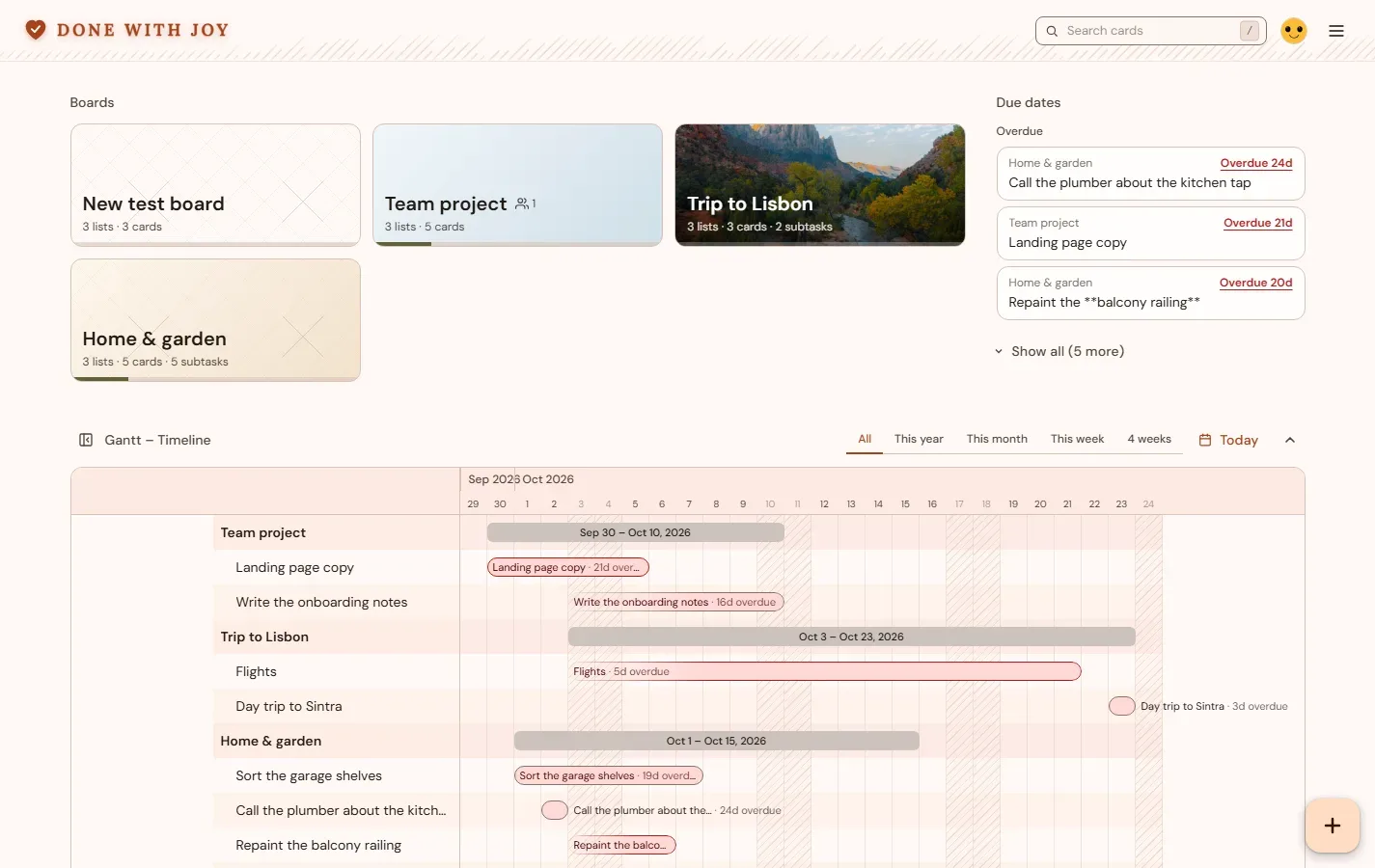
- Long boards and Due dates lists show only the first few, with a “Show all” link for the rest.
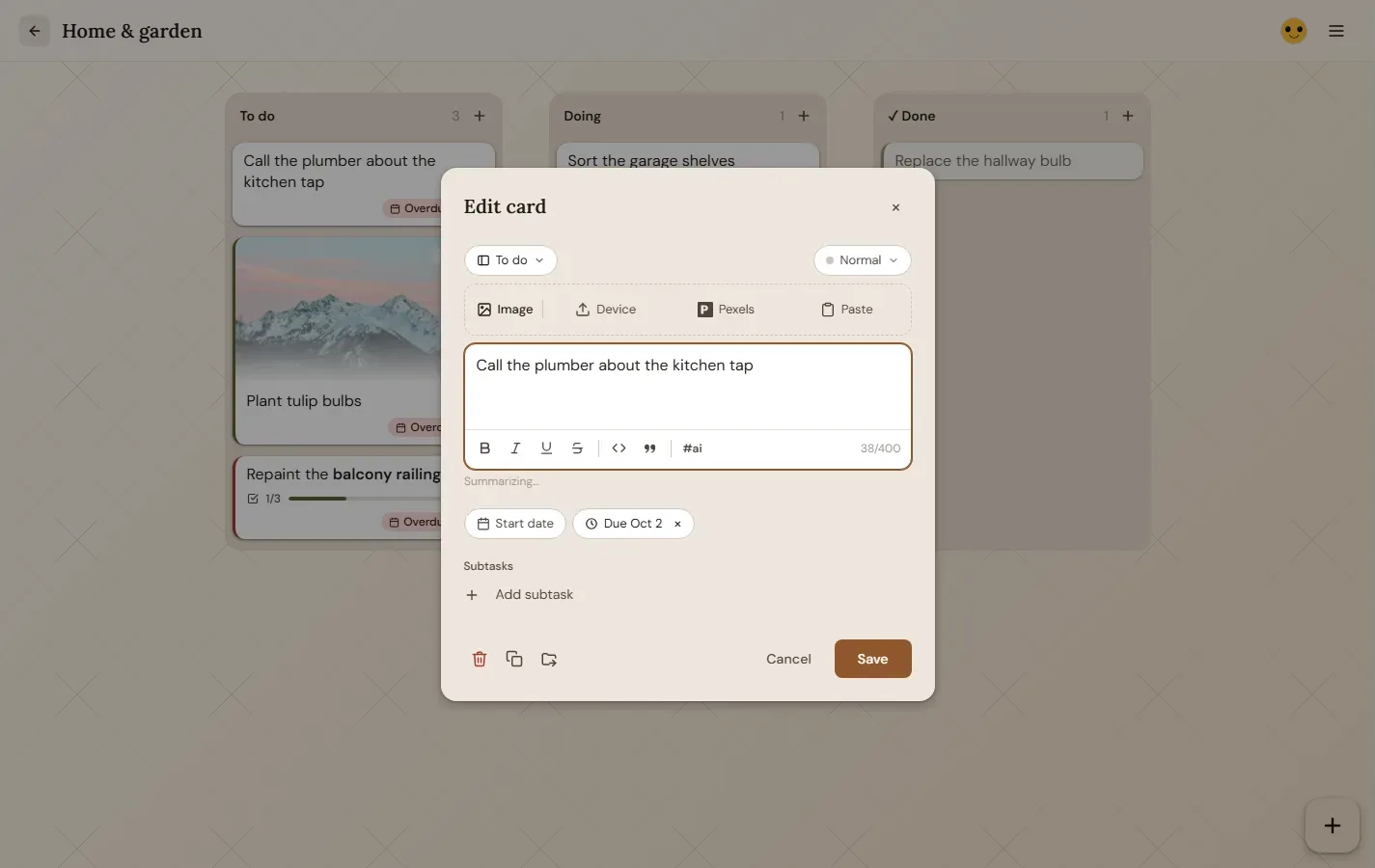
- Cards can have a start date next to the due date; a card shows it as “Starts Sep 20”, or “Sep 20 – Sep 30” with both.
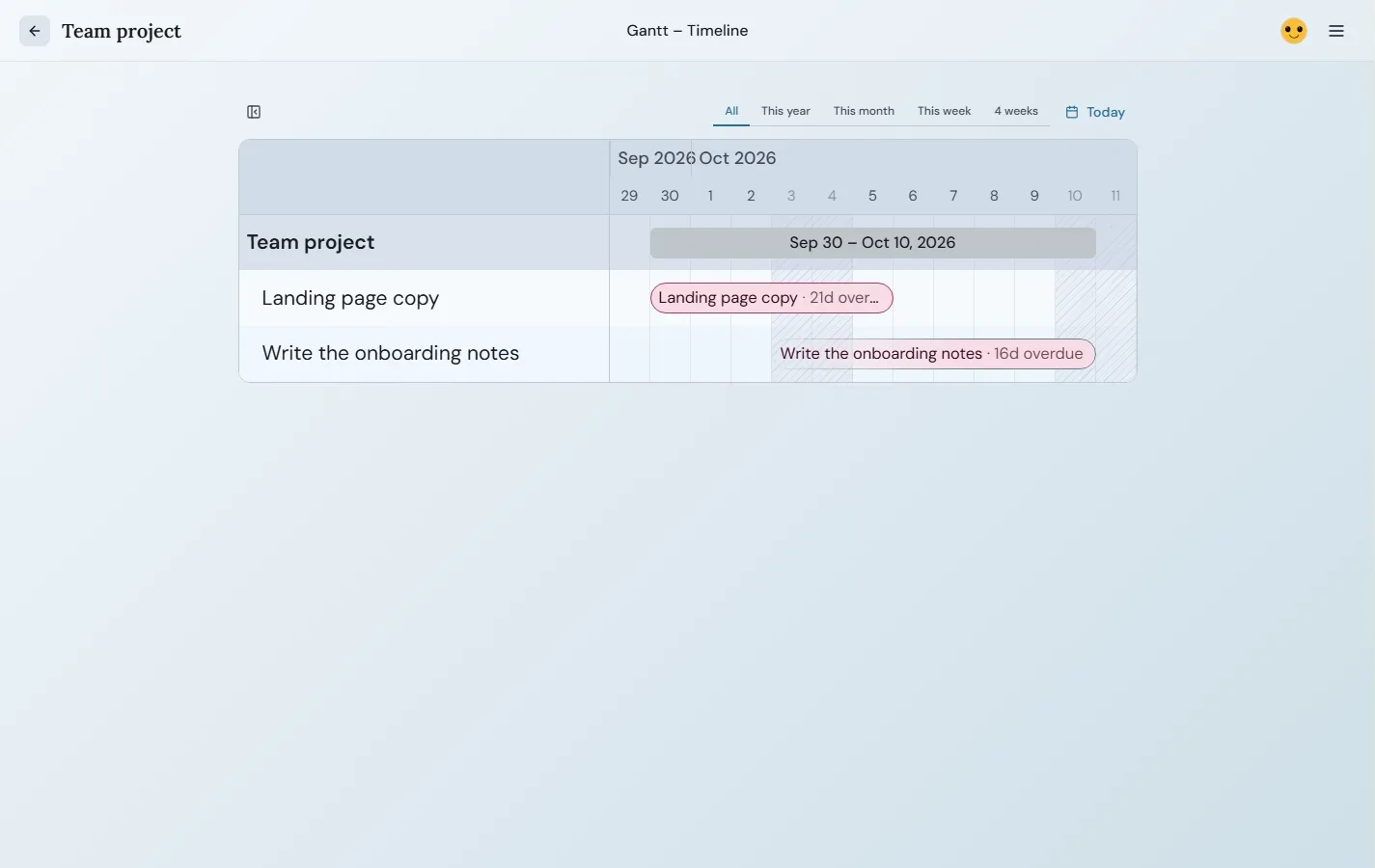
- New Gantt view of a board (G, or the ⋯ menu): a day-by-day timeline of every card with a start or due date. It opens centred on today, scrolls into the past and future, and clicking a card opens it. A bar’s border shows the card’s priority; finished cards are faded and ticked.
- In the Gantt, each bar shows the card’s name and how many days are left (or overdue), and the board’s bar shows its dates — both stay in view as you scroll. Hovering a row highlights it across the whole chart.
- The Gantt reminds you when a board has no completion list, with a button to set one in Board settings.
- Timeline for all boards: the boards page shows every active board on one Gantt timeline below your boards, earliest first. G (or Hide / Show Gantt in the ⋯ menu) hides and shows it. Click a board’s name to open it, or a card to edit it.
- A panel icon in the timeline’s corner hides the names column for a simpler, wider chart; board names then appear on their bars, and the choice is remembered.
- Pressing Esc in a dialog on a board no longer also closes Edit lists or the Gantt.
- On a board, the top bar shows which mode you’re in — Edit lists or Gantt – Timeline. Edit lists has its own New list button (and C).
- Archived boards moved to their own page: Archived boards in the ⋯ menu on the boards page.
- New About The Project page in the ⋯ menu on the boards page: what the app is, how it’s built and the services it relies on.
- Dialogs never grow taller than the screen on desktop; long ones scroll inside.
- The card dialog is wider and can use almost the full height of the screen, so longer cards fit without scrolling.
- Card dates must be real dates between 2000 and 2200, and a start date can’t come after the due date.
2026-09-14
- Done With Joy has its own domain now: donewithjoy.app.
- Achiever is now Done With Joy, with a new logo: a heart with a tick.
- Moving a card into Done sends hearts of all sizes floating up from the bottom of the screen.
- Pages show a spinner in the middle of the screen while they load, instead of a small “Loading…” text.
- Every board gets an icon: the first letter of its name in a softly outlined square, shown in the boards list.
2026-09-13
- New boards, lists and cards flash green; deleted ones flash red, then disappear.
- A “Saved” notice confirms every change, and “Refreshed” shows when changes from another device come in.
- An open board now picks up a new name, background or card order set on another device.
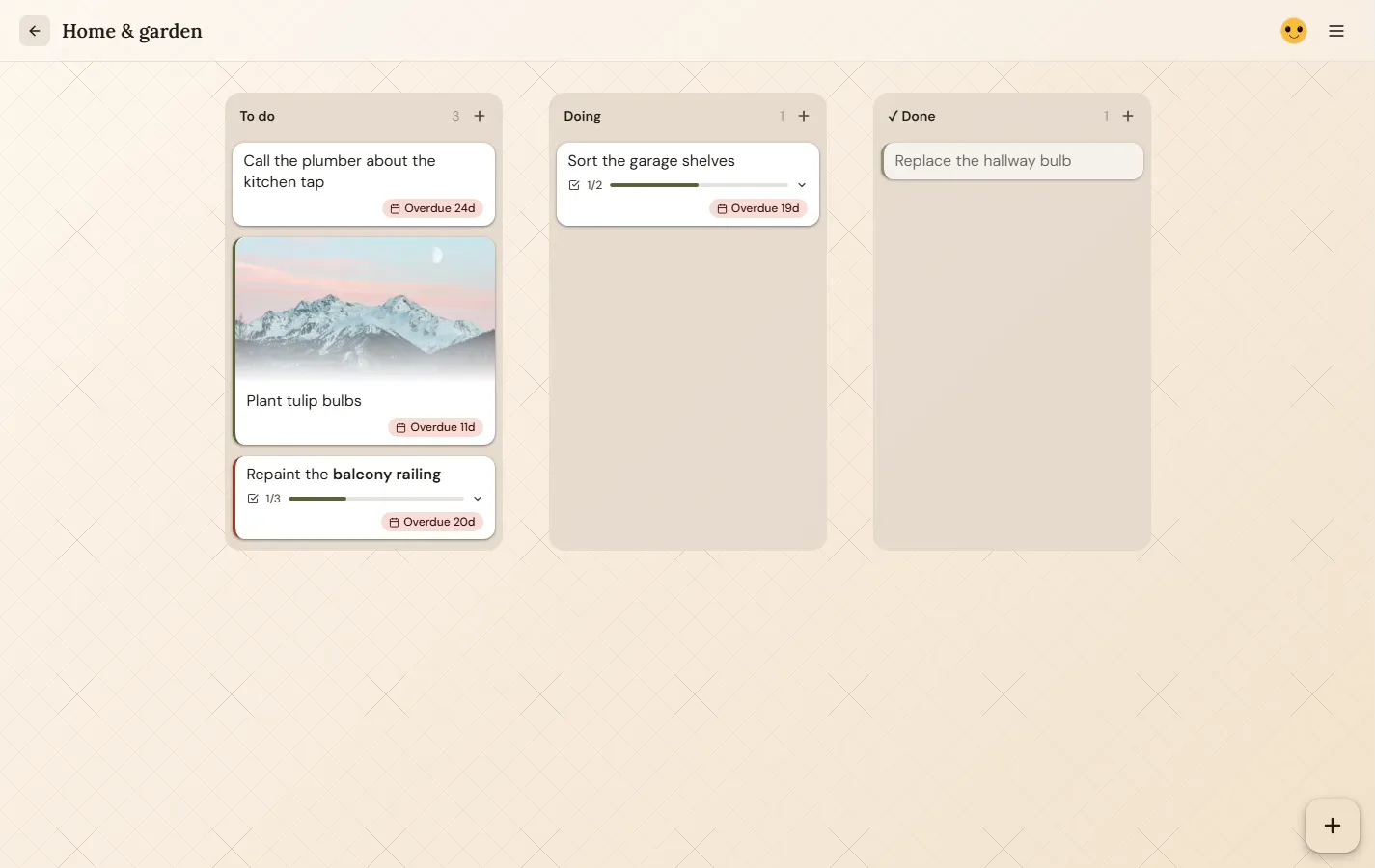
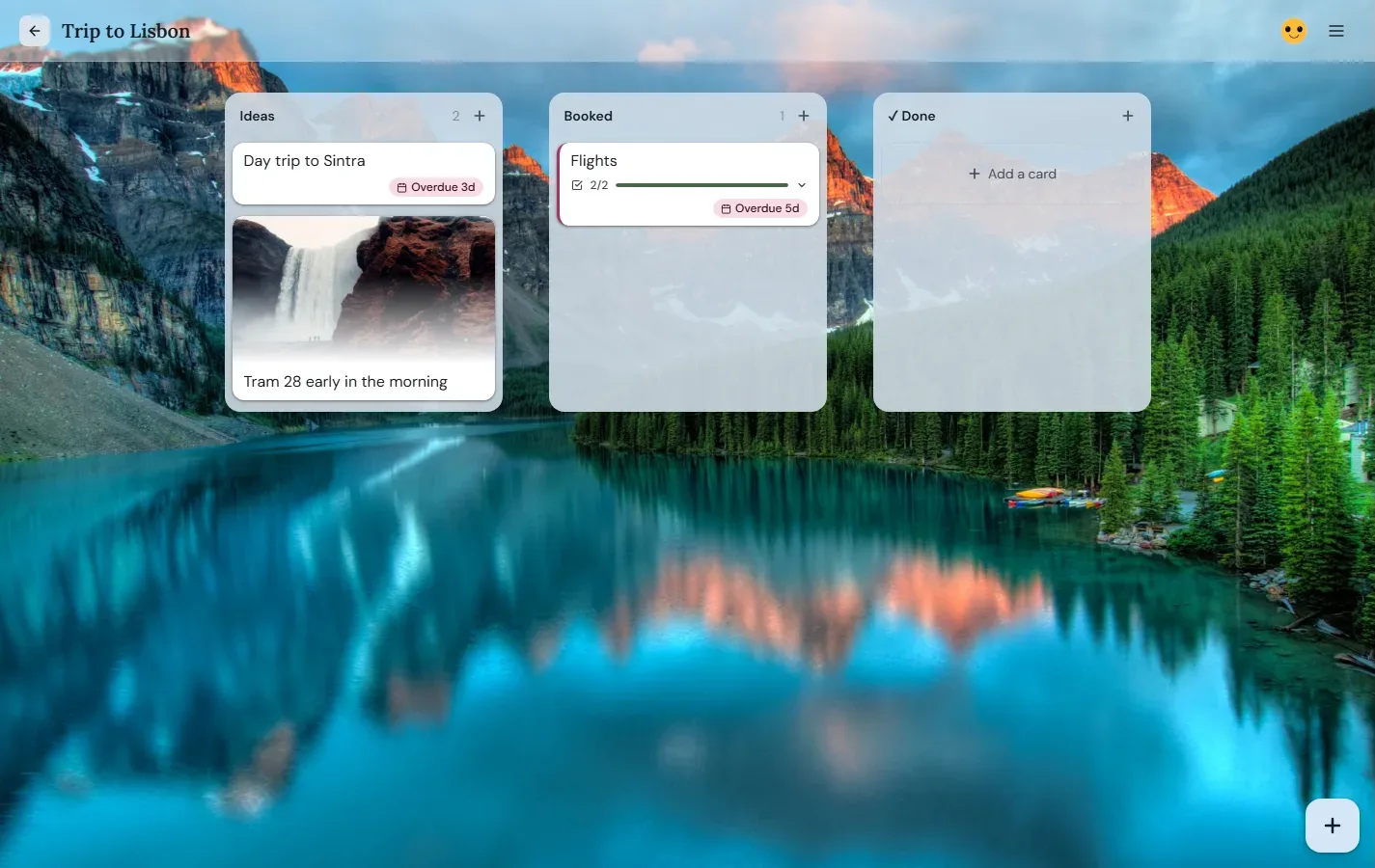
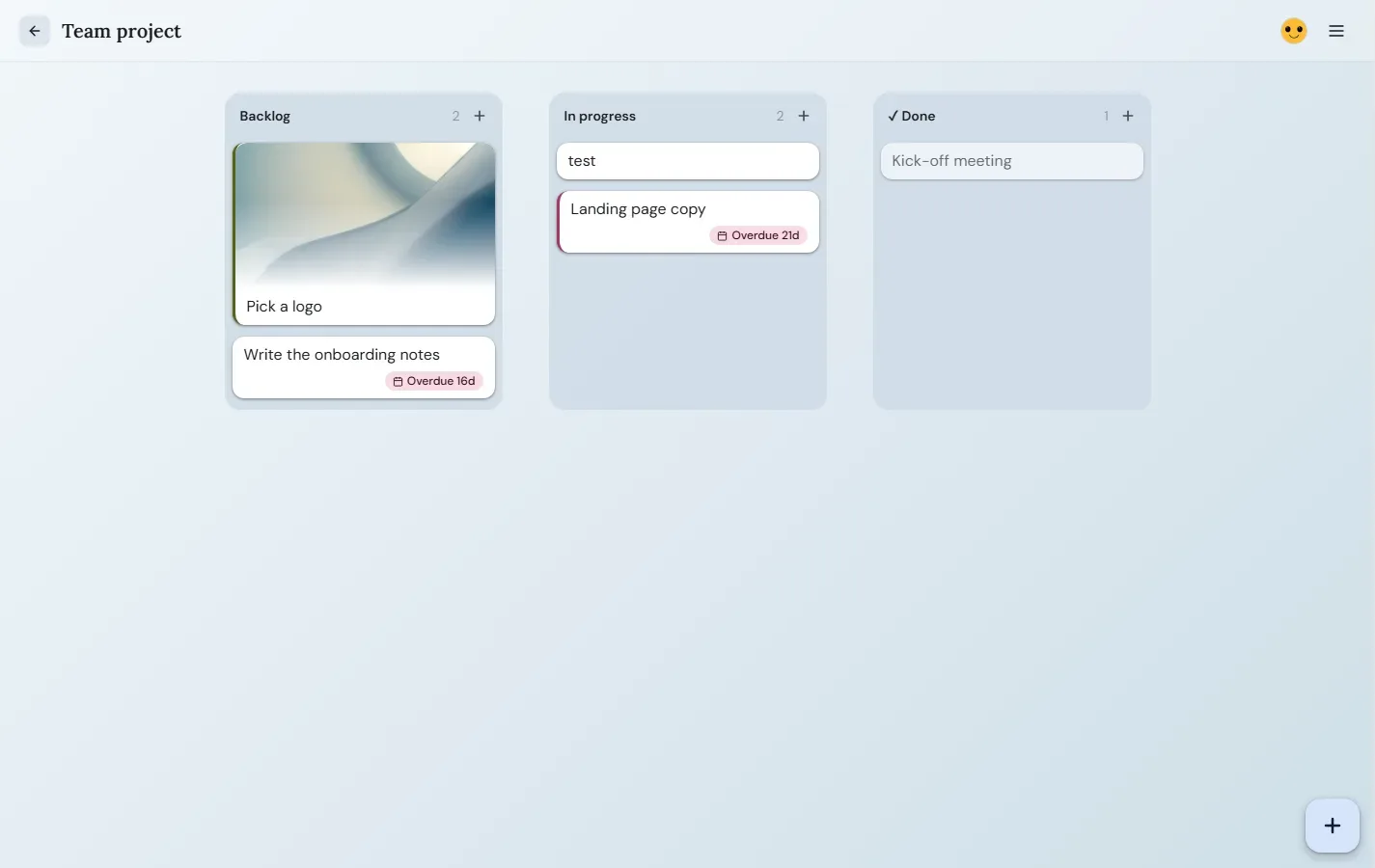
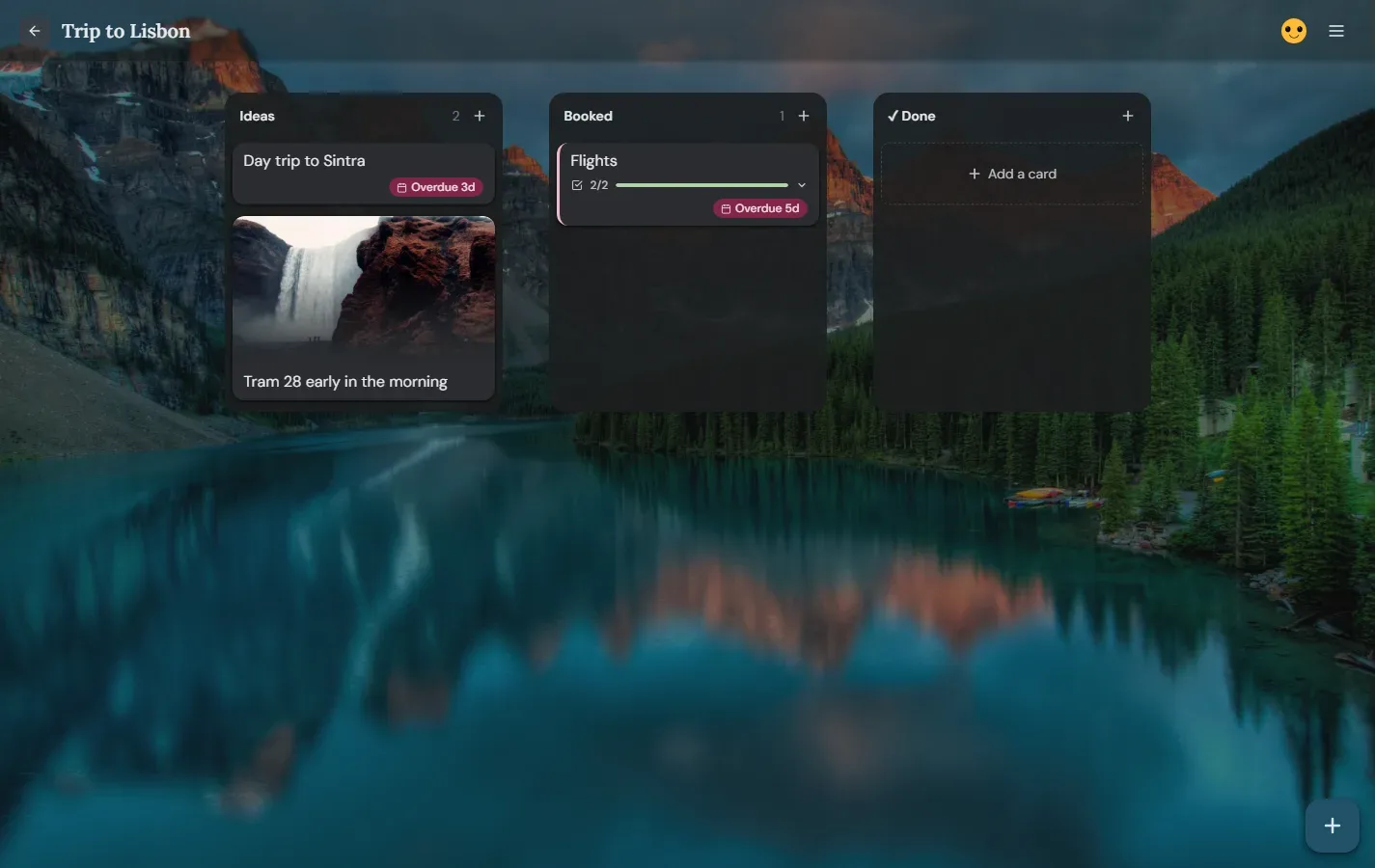
- Each list shows how many cards it has in its top-right corner; empty lists say “No cards yet.”
- Help is now in the ⋯ menu on the boards page too.
- Boards page: narrower board cards, plus a + button in the bottom right and the C key for a new board — same as adding a card on a board.
- Phones: a + button next to the ⋯ menu adds a card on a board, or a new board on the boards page.
- Add new lists right inside Edit lists.
- Empty lists are deleted without asking.
- Phones: swipe to the next list anywhere on the screen.
- After sending a message, a “Back to Homepage” button takes you home.
- Logging out brings you back to the start page.
- Tidier start page, and archived boards line up with the rest.
- Cards with a picture are dragged by the picture, whether it sits at the top or the bottom.
- The grab cursor shows only while you’re actually dragging.
- A quick click on a card or list no longer looks like the start of a drag.
- Deleting a card asks about it by name, so you know which one is going.
- Edit lists: stacked lists are indented and their column gets a double border, so stacks stand out.
- Double-click — or double-tap on phones — a card’s text to edit it, a list’s name to rename it, or the board title to open Board settings.
2026-09-12
- Fresh new look: warmer colours, new board backgrounds.
- Change a board’s settings straight from the boards list.
- Safer sign-in and log out.
- Your first board opens right away.
- Rearrange, stack and delete lists in Edit lists.
- Board actions live in the ⋯ menu. Shortcuts: C new card, L new list, A edit lists.
- Faster, steadier drag and drop.
- Phones: simpler bottom bar and smoother swiping between lists.
2026-05-09
- Achiever moved to happy2live.online, with a new start page.
Earlier
- Stackable lists, card images and Pexels photos, subtasks, due dates, formatted card text, drag and drop.